

Welcome to
A flash drive from Noware

Use PUFF like any other flash drive.
- Pull the cap straight off and peel the rubber back.
- Plug it in.
- Add files.
When you're done, eject it on your computer before unplugging or changing modes.
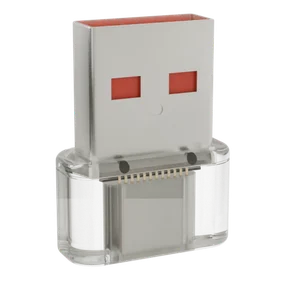
USB‑A port?
Use the adapter in the box.

Hold the button for 1 second to change the design.

To add designs, hold the button as you plug PUFF in.
Let go after 2 seconds to enter design mode, then open puff.land in Chrome* on a computer.
*Or any Chromium-based browser, like Edge, Arc or Brave. Chrome on an Android phone works too.
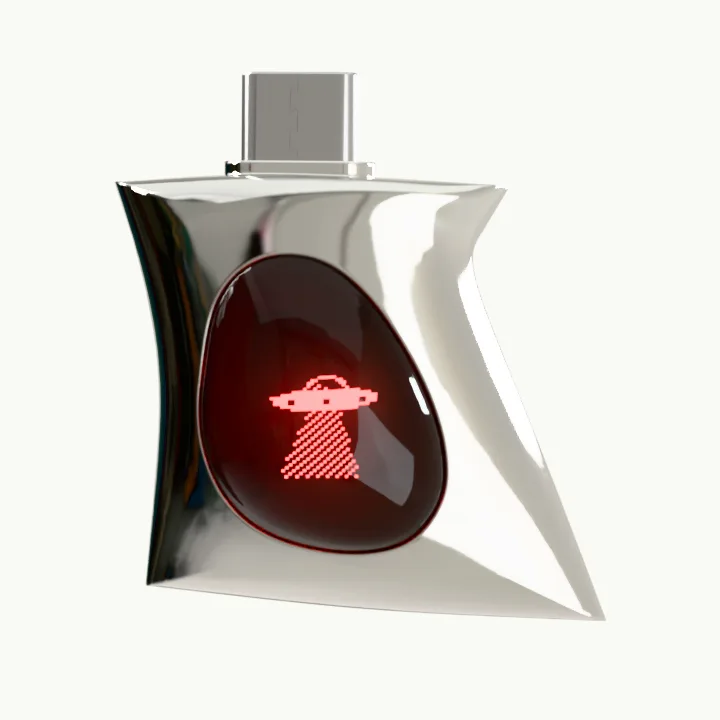
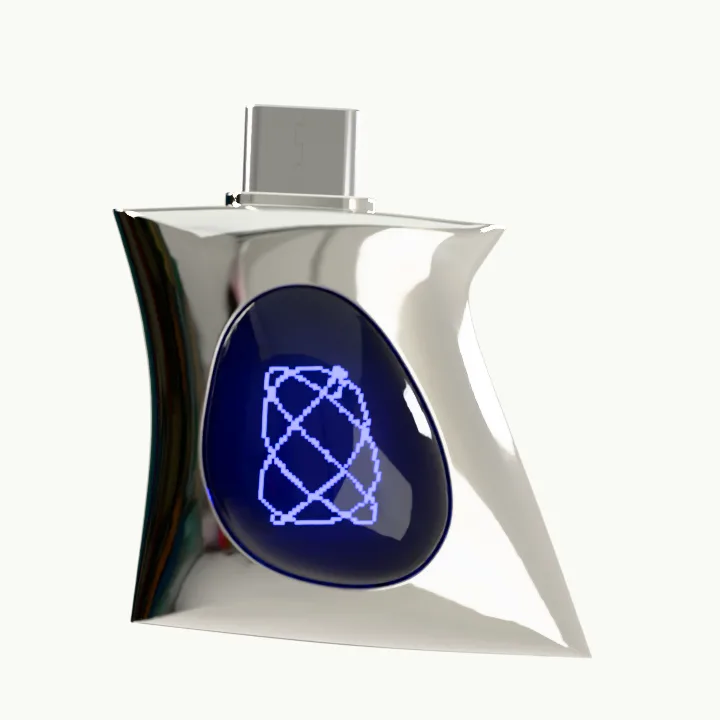
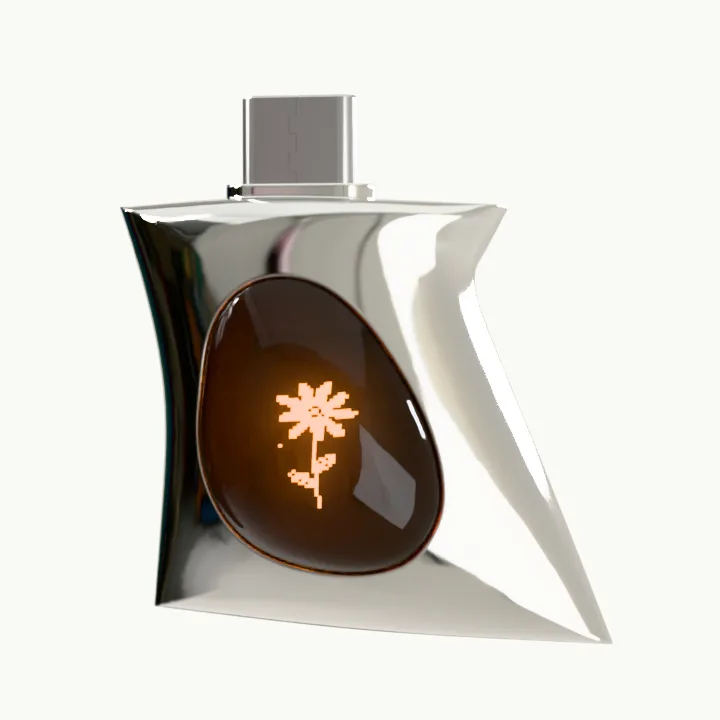
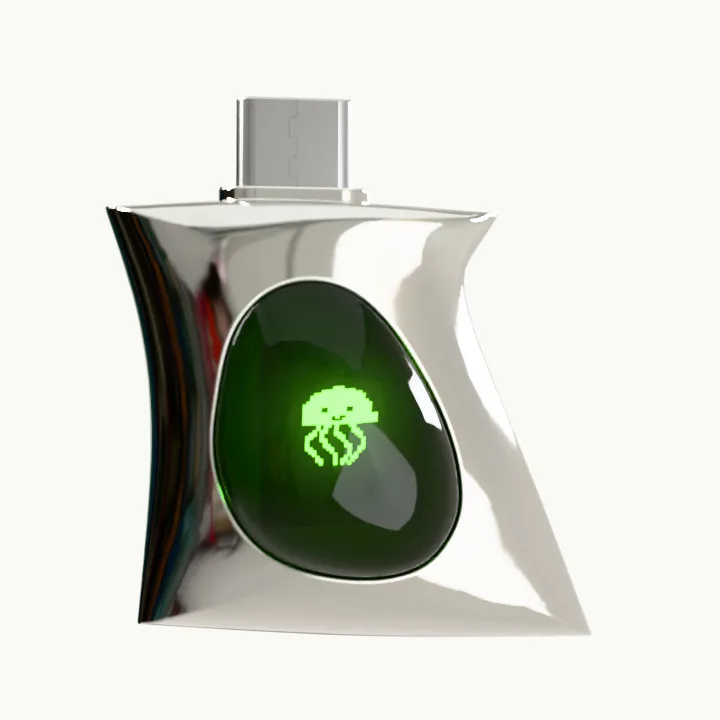
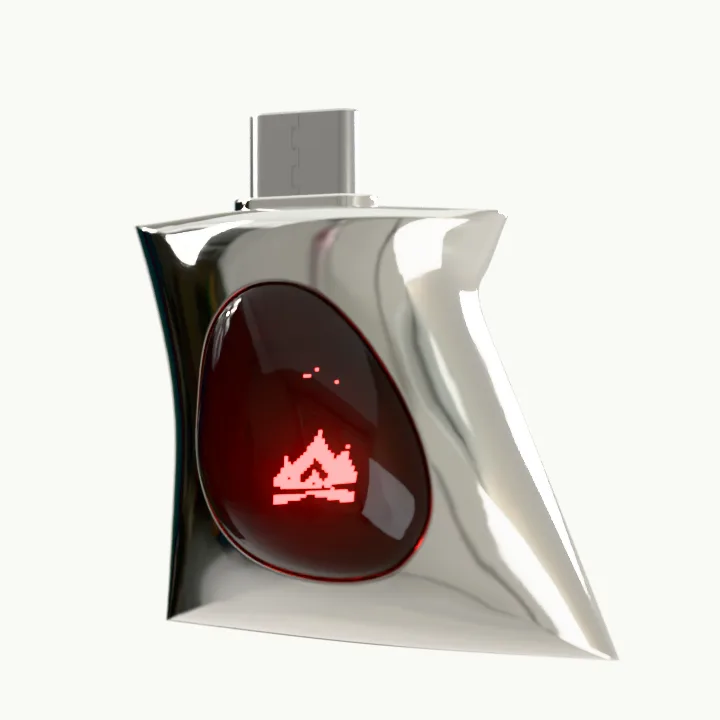
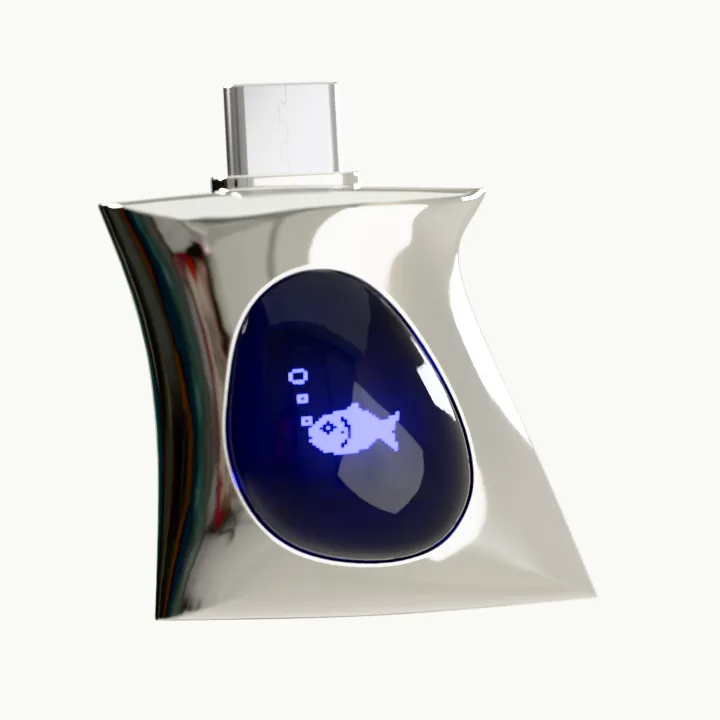
Make PUFF yours withStudio
Load it with animations and games from the community, or make your own, right in your browser.
Open Puff StudioUsing PUFF
- PUFF (128 GB), a box chain necklace, a USB‑A adapter and a small screwdriver.
- Finish copying files, then eject PUFF using your computer's eject or safely remove option. Wait until it says the drive can be removed before unplugging. Do this before entering design or update mode, too.
- No. PUFF runs on power from whatever it's plugged into, so there's nothing to charge. The screen sleeps when it's unplugged.
- No. PUFF has a tiny microphone so some designs can react to sound, like music visualizers and games you clap or shout at. It's a live input only: each split second of sound becomes a loudness and pitch reading for the animation, then it's gone. Nothing is ever recorded, saved on PUFF or sent anywhere, and PUFF doesn't use Wi‑Fi or Bluetooth.
- No. A design only ever gets how loud the sound around it is, never the sound itself, so there's nothing in it to listen to or keep.
- Yes. As a drive it works anywhere a USB drive does. Puff Studio runs in Chrome, Edge, Arc or Brave on any computer, and in Chrome on Android phones.
- Games use the button to play. Hold it for a second to skip to the next design instead.
- No. Your files are stored apart from designs and firmware. As with any drive, keep a backup of anything you'd hate to lose.
- Just unplug. Plug back in without touching the button and PUFF is a drive again, showing your designs.
- Best not. PUFF isn't waterproof or water resistant, so keep it out of the rain and take it off before you swim or shower. If it does get wet, don't plug it in: wipe it dry and leave it somewhere dry at room temperature for at least two full days first.
- Yes. It comes on a box chain necklace, but it's just as happy on a keyring, a carabiner or a chain you already wear.
Troubleshooting
- Plug in without touching the button. Holding it starts design mode instead. If you're on a hub or adapter, try a port on the computer itself.
- Use Chrome, Edge, Arc or Brave on a computer, or Chrome on an Android phone. Safari, Firefox, iPhone and iPad can't connect to USB devices. Then check PUFF is in design mode: its screen should say DESIGN AT PUFF.LAND.
- Unplug it and plug it back in. With no battery, that's a full restart. Still stuck? Update the firmware (below).
- Enter update mode: hold the button while plugging in and keep holding until the screen says LET GO TO UPDATE, about 6 seconds. Then open the firmware page in Puff Studio and leave PUFF plugged in until it's done.

- No. If an update doesn't finish, PUFF falls back to a recovery screen instead of running broken firmware. Start update mode again and re-run it from puff.land.
Compliance & contact
PUFF, model PUFF-V1-128. US responsible party: Noware Devices Inc., 87 Richardson St, Floor 4, Unit 6, Brooklyn, NY 11211, USA · hello@noware.nyc · noware.nyc